
How do I use Manuscript Analysis?
Manuscript Analysis gives you actionable feedback on your entire manuscript. It generates detailed analysis of characters, plot, and setting, prioritized by importance. You will receive specific advice about ways to strengthen your entire story with exact text locations you can jump to for editing your writing.
Purchase Story Credits to run Manuscript Analysis
When you first sign up for a ProWritingAid account, we will give you 1 trial credit to run Manuscript Analysis. After this, you will need to purchase Story Credits directly on our website to run Manuscript Analysis. It costs 1 Story Credit to run Manuscript Analysis once.
You can buy individual credits or bundles of 3 or 10 credits. You don’t need a Premium or Premium Pro subscription to purchase credits. However, if you have Premium or Premium Pro, you will receive a discount that will be automatically applied when you purchase credits.
How to prepare your manuscript for Manuscript Analysis
To ensure Manuscript Analysis works correctly, follow these steps:
- Ensure your manuscript is on a single file without nested documents within it.
- Check your manuscript is between 6,000 and 300,000 words.
- Separate your chapters clearly. You’ll get the best results if you number your chapter titles (for example: “Chapter 4”).
To find out more, read our article about how to prepare your manuscript for Manuscript Analysis.
How to run Manuscript Analysis
Watch the video or follow the steps below to learn how to use and run Manuscript Analysis:
- If you’re using Scrivener or our Web Editor, make sure that you’re on a full document view before running Manuscript Analysis. This will ensure Manuscript Analysis runs on your entire manuscript.
- On the Web Editor, click on “Full Document” if your document is divided into chapters.
- If you’re using Scrivener, read our article about using Manuscript Analysis with Scrivener
-
If you are using Desktop Everywhere or our browser extensions, click the floating ProWritingAid icon.
-
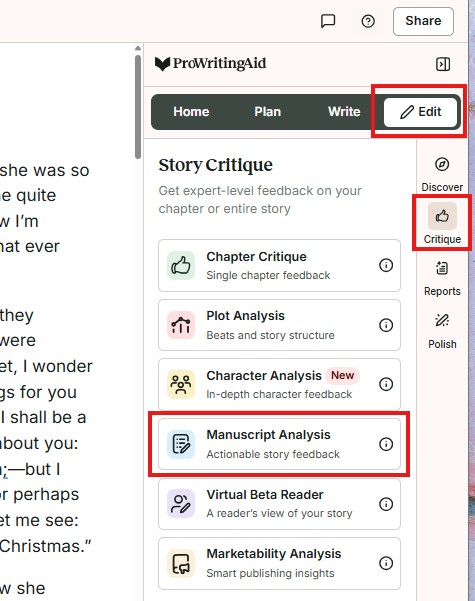
In the Web Editor, Desktop Everywhere, or our browser extensions, click on the “Edit” tab in the righthand sidebar. Then click on "Critique" in the menu that appears within the sidebar, then click on "Manuscript Analysis." We have highlighted these buttons in red in the image below
-
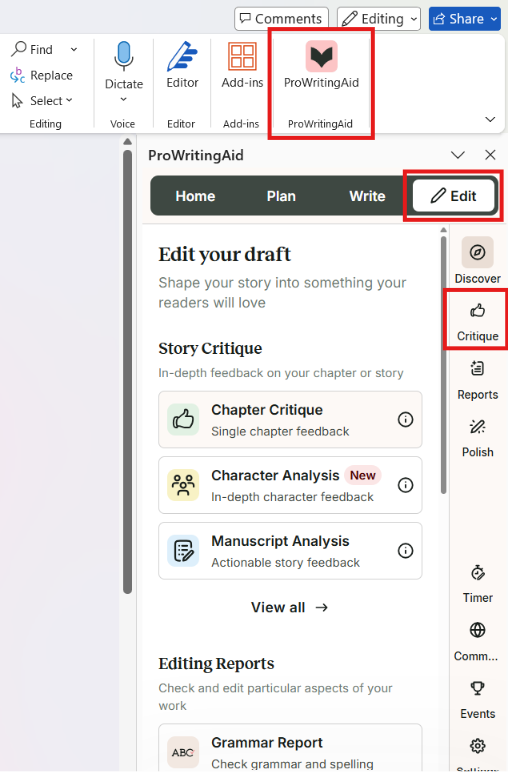
If you use our Word Add-In (Windows only), the new menu should automatically load when you open Word. If it doesn't, click on the “ProWritingAid” button in the toolbar at the top of your Word document. Once the menu loads, click on "Edit", then "Critique". We have highlighted these buttons in red in the image below.
Manuscript Analysis works with entire manuscripts of up to 300,000 words. We recommend writing at least 6,000 words to ensure you get a meaningful amount of feedback on your writing.
-
The analysis will take a few minutes to run, depending on the total word count of your manuscript.
You will see a notification with the approximate waiting time for your results. In the meantime, you can keep using any other feature as normal.
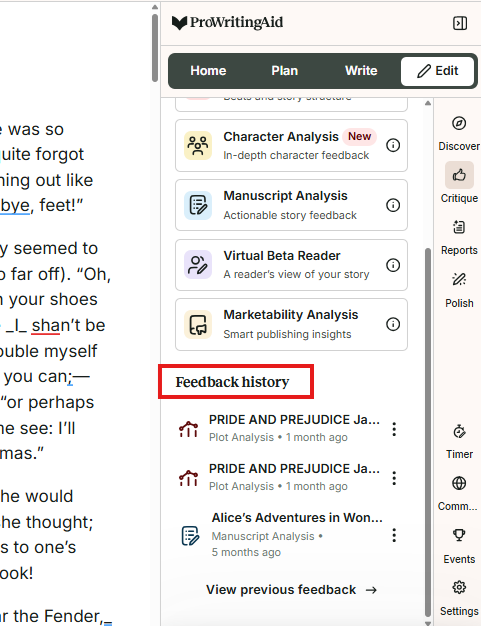
When the analysis is ready, you will be notified that the report is ready to review. It will appear in the "Feedback history" section where the Manuscript Analysis Report will be automatically saved. We have highlighted this section in red in the image below.
The report you see works a lot like our Summary and Chapter Critique Reports. Click through all the headings on the left to see specific feedback about your document.
For example, if you want to look at the themes within your story, click on the “Narrative Themes” heading to see feedback about what’s working well and what needs improvement.
How to work with Manuscript Analysis
Each section of the report gives you detailed, actionable feedback on your writing, which you can use to refine your story.
To find out more, read our article about the feedback Manuscript Analysis provides.
Once the report is ready, you can read it while you edit your document. You can make changes in your manuscript as you read the report and even jump to exact text locations for potential issues found by the report.
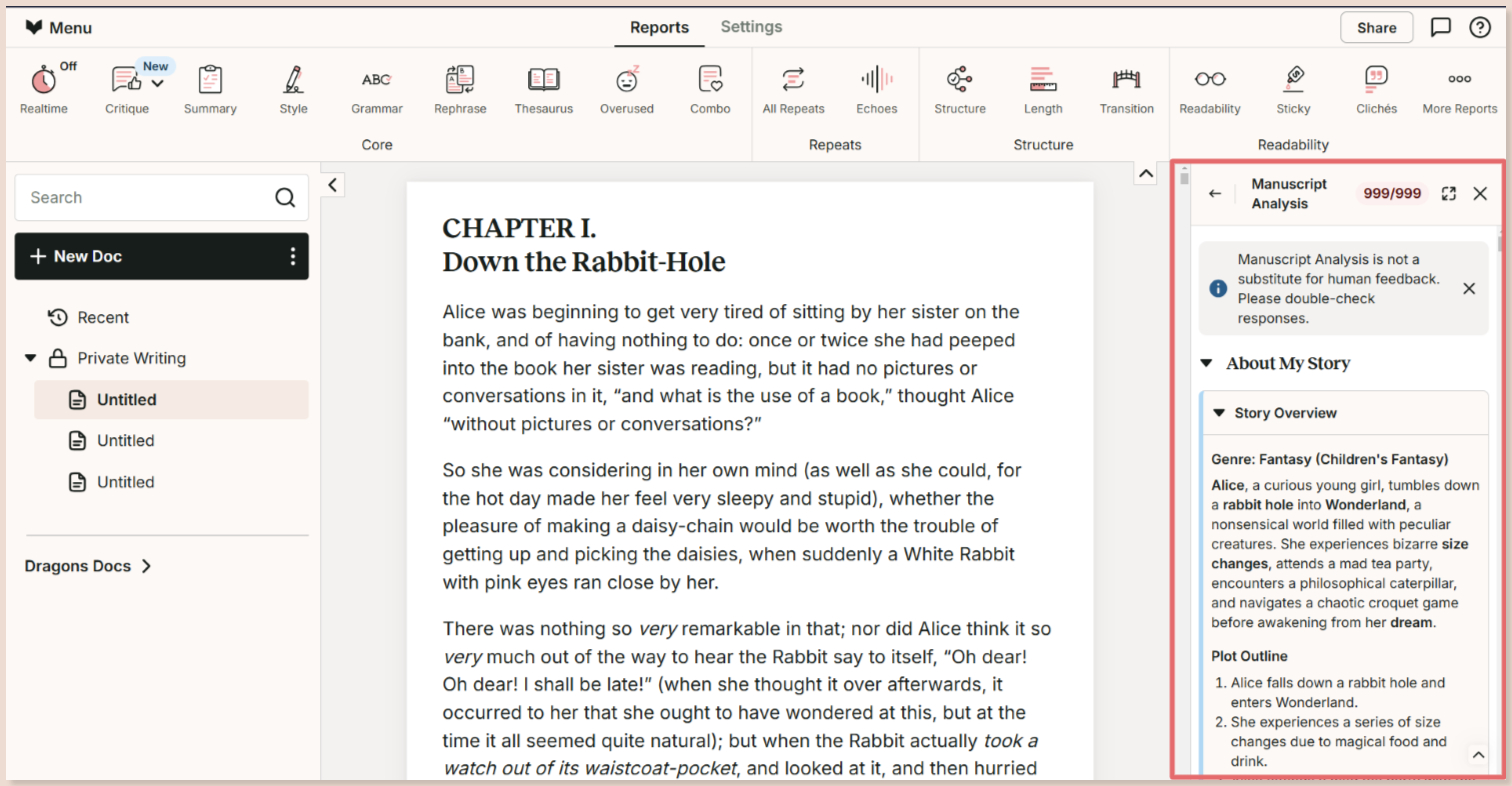
To do this, click on the “Minimize” icon. We have shown this icon with a red arrow pointing toward it in the image below.
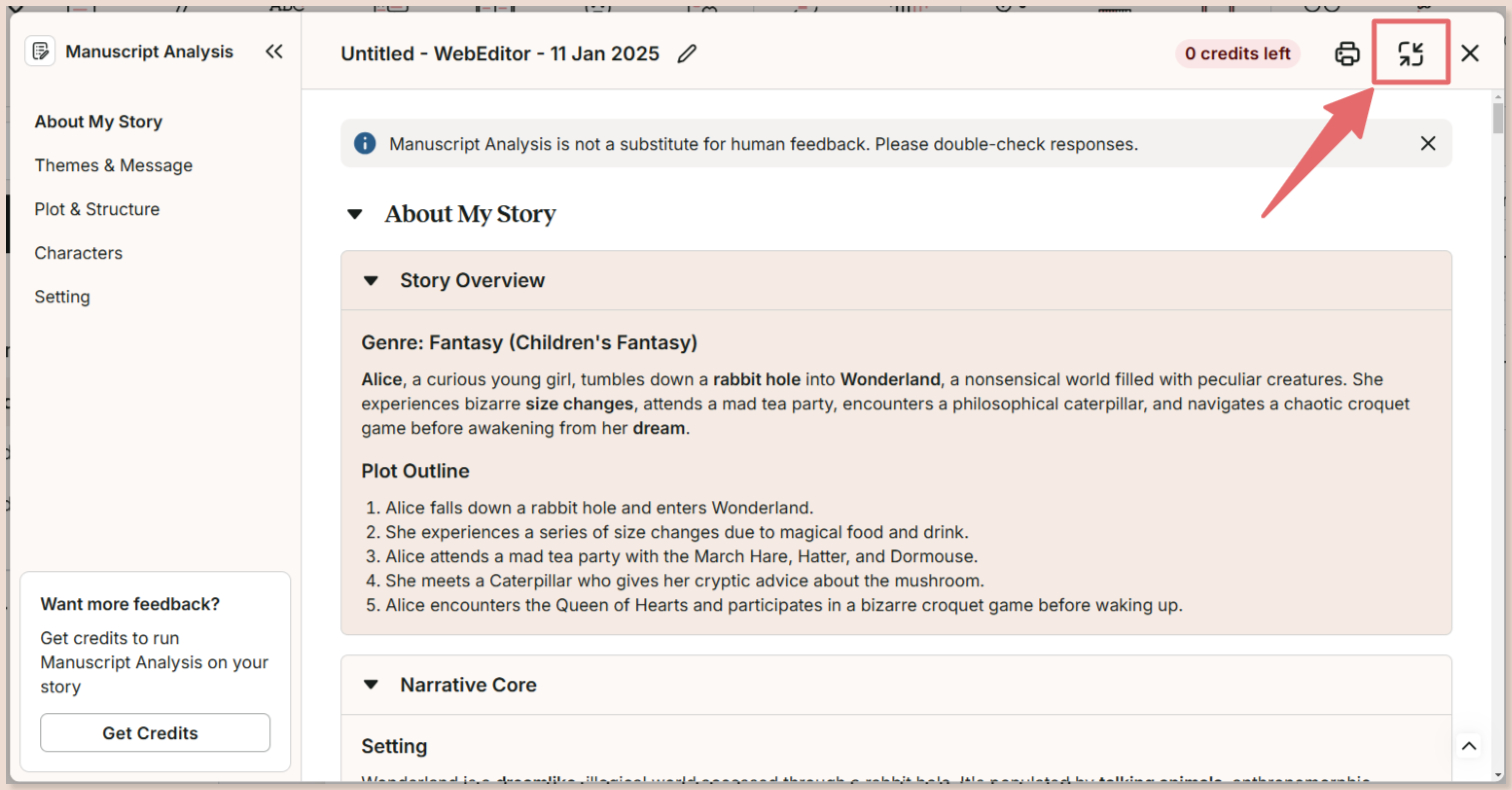
Your Manuscript Analysis results will then appear in the sidebar. We have highlighted this in red in the image below.
How to save your Manuscript Analysis Report
Every time you run a Manuscript Analysis, we will save it automatically to your “Feedback history.” From there, you can rename it to a memorable name.
To find out more, read our article about how to save your Manuscript Analysis Report.
Have you tried Desktop Everywhere? Download for Windows or Mac to get editing suggestions and advanced analysis directly in Word, Scrivener, and all your favorite writing apps.