
How do I use Chapter Critique?
Chapter Critique gives you instant feedback on a chapter of your story. You can read in-depth feedback about your chapter overview, as well as its narrative structure, core strength, pacing, point of view and characterization.
It will also spot actionable improvements and issues identified in your chapter, with exact locations in your text.
When you run Chapter Critique, a report will generate in a new window. We have shown an example of the report in the image below.

Click on each of the feedback categories in the side menu to jump to its section in the critique. Each section will give you at least a paragraph of feedback on that category for your chapter.
The sections for “Structure,” “Point of View and Narrative Voice,” “Language and Style,” and “Characters” all contain actionable feedback. Issues found in these sections will have a list of text location buttons. You can click on each button to jump to the exact location of the issue in your text.
Chapter Critique works on chapters of up to 6,000 words. We recommend writing at least 500 words to get a meaningful amount of feedback on your writing.
If you are a novelist and want feedback on your entire manuscript containing multiple chapters, you should run Manuscript Analysis instead.
How many times can I run Chapter Critique?
How many times you can run Chapter Critique depends on which plan you have:
| Free | Premium | Premium Pro |
| Not included | 1 Chapter Critique per day | 30 Chapter Critiques per day |
When you run Chapter Critique, in the top banner you will see a label that shows your Chapter Critique daily limit and how many you have left today. We have highlighted this in red in the example image below.

When you have used up your daily limit, you cannot generate Chapter Critique again until your daily limit resets. You can still access previous Chapter Critique results in your Feedback History.
You can only access, print and download your previous Chapter Critique reports if you have Premium or Premium Pro. If you downgrade to a Free plan, you will no longer be able to access, print or download previous reports.
Chapter Critique daily limits reset every day at 00:00 UTC.
How to run Chapter Critique
If you’re using the Web Editor, click on the “Edit” tab in the righthand sidebar. Then click on "Critique" in the menu that appears within the sidebar. Then click on “Chapter Critique.” We have highlighted these buttons in red in the image below.
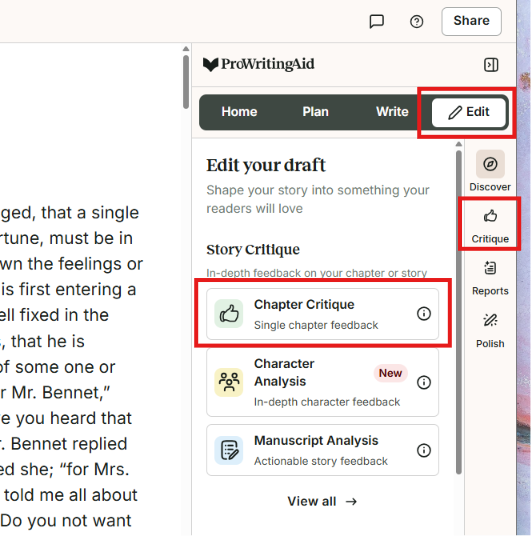
If you’re using a ProWritingAid integration, click on the floating ProWritingAid icon. Click on “Edit”, then click on "Critique," then click on “Chapter Critique.”
Chapter Critique will run. Depending on the length of your chapter, it may take up to 15 seconds to generate in a new window.
Have you tried Desktop Everywhere? Download for Windows or Mac to get editing suggestions and advanced analysis directly in Word, Scrivener, and all your favorite writing apps.