
How to create a custom style guide
When you write with ProWritingAid, you can create a custom style guide that includes your specific writing rules. To do this, you need to visit the Style Guides page and access Advanced Style Guides.
How to access Advanced Style Guides
You can access your Advanced Style Guides section at any time after you log in to your account on our website. First, click on “Open Dashboard” in the top navigation of the website.
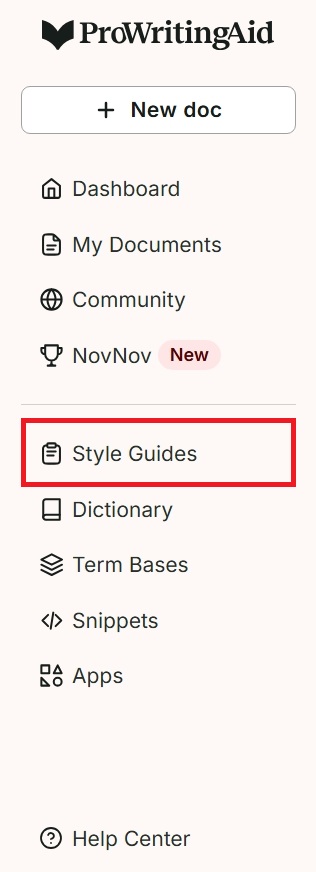
In the left-hand side menu, click on “Style Guides.” We have highlighted this in red in the image below.
The Style Guides page will open. Scroll down to the last section, “Advanced Style Guides.”
How to create a custom style guide
First, click on the “+” icon button in the writing rules table. We have highlighted this in red in the image below.

The writing rule window will appear. We have shown an example of this window in the image below.

In the “Wrong Sentence” field, write an example sentence that includes the wrong word, phrase, or punctuation you want to correct. After you have written your sentence, you can also click on “Show Sentence Analysis” to see the speech tags used in your sentence.
In the “Match” field, write just the wrong word, phrase, or punctuation you want to flag in your text.
In the “Replacement” field, write the correct word, phrase, or punctuation you want to use as the direct replacement in your text.
In the “Message” field, write the message that will be displayed whenever the wrong word, phrase, or punctuation is flagged in your text.
Finally, click the “Save” button. The writing rule will appear in the writing rules table. We have shown an example of this in the image below.

You can continue to add as many specific writing rules as you like to create a custom style guide. Now, whenever you write in a document while using ProWritingAid, the custom style guide you created will actively flag your writing rules.
If you want to remove a writing rule from your custom style guide, check the box next to the writing rule. Click the “Delete Selected” button. A window will appear titled “Delete item.” Click “Delete” and the rule will be deleted.
Find out more about creating a custom style guide.
ProWritingAid is more than just an editing assistant; we’re here to help you bring your story to life. Unlock your story’s full potential with our in-depth writing reports, actionable feedback, and more.