
How to reenable rules
To reenable rules for dialogue or style guide settings you may have previously disabled, you need to visit your User Application Settings and visit your Style Guides.
How to access your User Application Settings
You can access your User Application Settings at any time after you log in to your account on our website. First, click on “Open Dashboard” in the top navigation of the website.
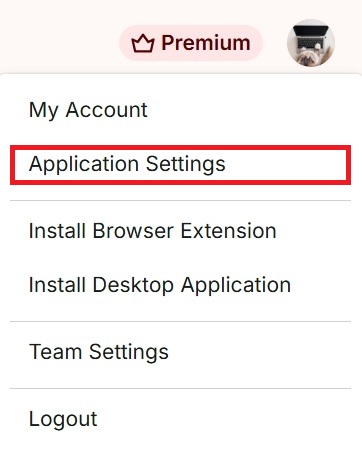
Click on your profile icon in the top right-hand corner of your window. The profile menu will appear. In the menu, click on “Application Settings.” We have highlighted this in red in the image below.
The User Application Settings page will open.
How to reenable rules in User Application Settings
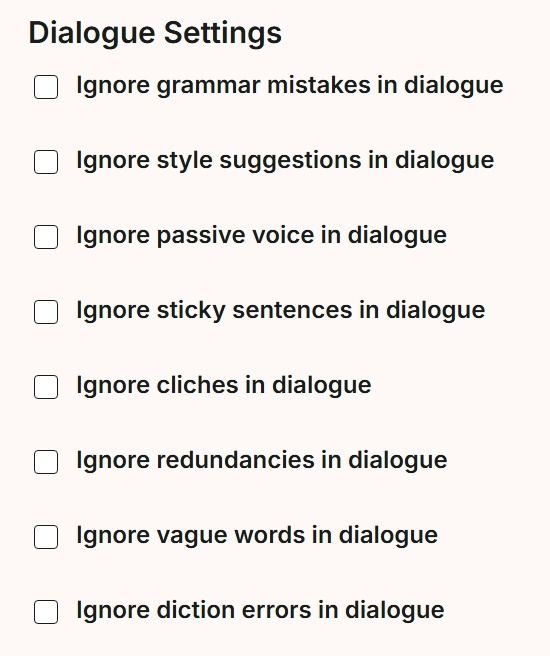
Scroll down to “Dialogue Settings” and uncheck the boxes to reenable rules for spotting possible issues in your dialogue. We have shown this section in the image below.
After you have unchecked the boxes, click on “Save Settings” at the end of the page.
How to access your Style Guides
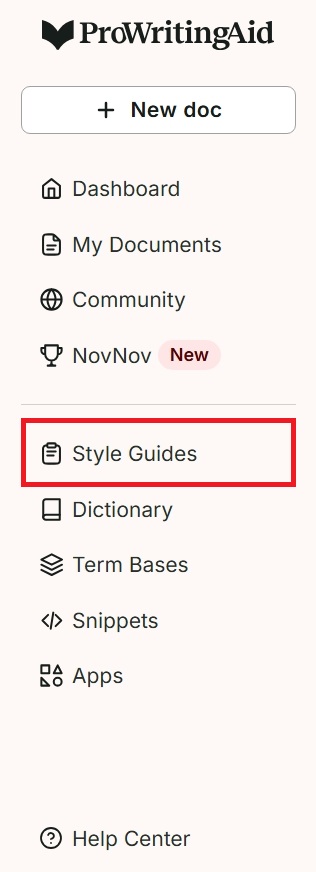
Follow the steps we outlined above to open your Dashboard. In the left-hand side menu, click on “Style Guides.” We have highlighted this in red in the image below.
The Style Guides page will open.
How to reenable rules in Style Guides
You can check the boxes to reenable rules you may have previously disabled in categories for:
- Readability
- Tone of Voice
- Business
- Punctuation
- Numbers
- Dates and Time
- Inclusive Language
- Creativity
- Citation
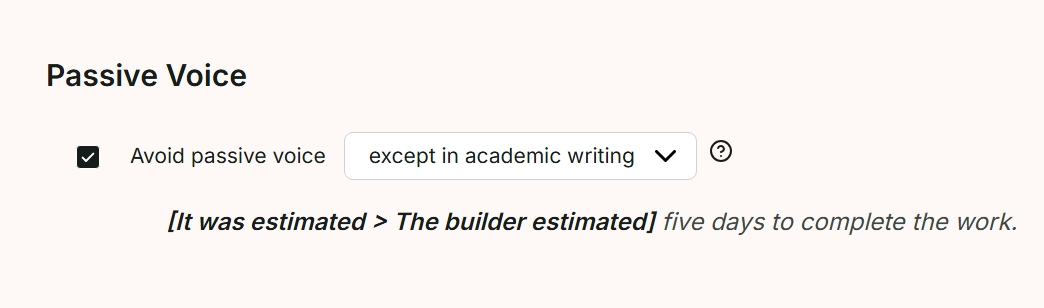
As an example of reenabling a rule in the “Passive Voice” section, check the box next to “Avoid passive voice” if you previously disabled this. We have shown this in the image below.
Reenabling other specific rules
You can only reenable some rules in User Application Settings and Style Guides. When you disable some rules, you may see a warning message titled “Confirm Disable Rule” first. We have shown this in the image below.
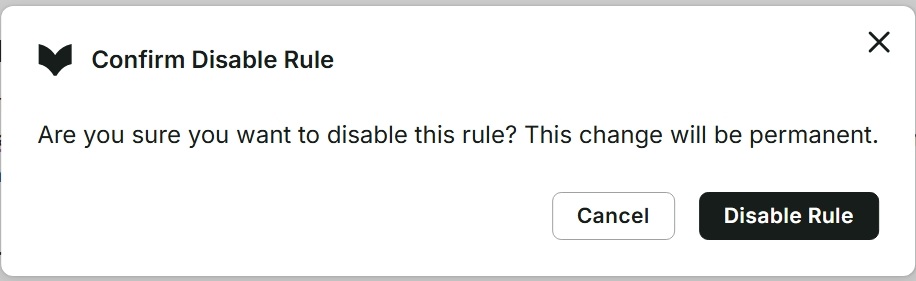
If you then clicked on the “Disable Rule” button, this rule may be permanently disabled. If you want to reenable this rule, please contact our support team or email hello@prowritingaid.com and we will help you.
ProWritingAid is more than just an editing assistant; we’re here to help you bring your story to life. Unlock your story’s full potential with our in-depth writing reports, actionable feedback, and more.