
How to use Desktop Everywhere for Windows
Desktop Everywhere for Windows works with Windows 11 and Windows 10, version 1903 (or newer).
Once you install Desktop Everywhere for Windows, it seamlessly integrates with all your favorite writing apps on your Windows computer. That includes Microsoft Word, Scrivener, Notion, and more. So, what do you do next? Our guide on how to use Desktop Everywhere for Windows will help you get the most out of its features.
Start typing in your writing app
As soon as you start typing, our Realtime Checker gets to work. You’ll see words with color-coded underlines for issues and suggestions to improve your writing. Simply hover over the underlined word to see all relevant suggestions. Select the option that suits your writing best.

The Realtime Checker highlights possible spelling and grammatical issues, as well as stylistic suggestions to rephrase your writing and improve readability.
Look out for the ProWritingAid Desktop Everywhere icon
When ProWritingAid Desktop Everywhere is active in most apps, you’ll see the floating ProWritingAid icon.

Helpful tip: You can click on the six dots next to the icon to drag and drop it on any edge of your window.
The icon is color-coded to help you see what’s happening at a glance:
- Gray means Desktop Everywhere is not analyzing text because there isn’t any text or you’re not currently working in that app.
- Pink means Desktop Everywhere has discovered suggestions or issues.
- Green means Desktop Everywhere has not discovered suggestions or issues.
You can click on the floating ProWritingAid icon to see the Realtime suggestions in a draggable pop-up.
Open the icon menu
Click on the Desktop Everywhere icon and a sidebar will appear.
This gives you access to a range of features and reports to improve your writing, as well as settings to suit your preferences.
See line editing suggestions
Click on the "Improve" icon to open the editing menu. You can select the writing style of your document from the dropdown menu. You can also see your score for specific goals and see a list of suggested improvements.
Run reports on writing style
Click on the "Reports" icon to open the Reports menu.

This gives you access to 25+ reports including our Summary, Core, and Structure Reports, as well as checks for Readability, Consistency, and Plagiarism.
When you click on a report, it will analyze the writing in your entire document. Once complete, you will see a list of possible suggestions and issues. The report will also underline these in the text while it is open.
Get story-level feedback
Click on the "Critique" icon to open the Critique menu.
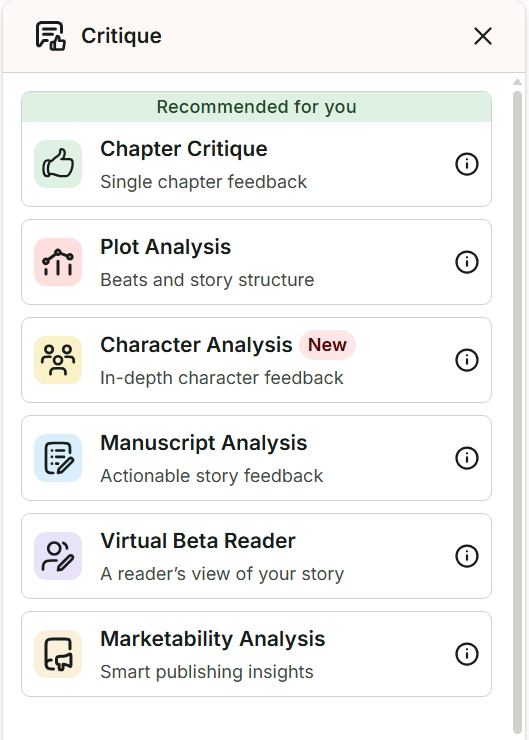
Here you can get direct feedback on a single chapter or your full story. You can also view your previous feedback.
Get feedback on your story idea
Click on the "Plan" icon to open the Plan menu. Here you can access Story Canvas for instant feedback on your idea for a story.
Use Write Mode
Click on the "Write" icon to open Write Mode. You can use this feature to record the time and word count of your writing sessions.
Hide underlines for distraction-free writing
Click on the "Focus" icon to hide all underlines in your visible text. The icon will change into a closed eye.

This feature is particularly helpful if you just want to focus on writing for the moment. When you’re ready for feedback again, simply click on the closed eye icon. It will change back to the Desktop Everywhere icon, and underlines will appear in your text again.
Select your settings
Click on the "Settings" icon to open the Settings menu. Here you can choose to disable Desktop Everywhere temporarily or permanently in the app you are using. You can also select your preferred language (English variants), toggle dark mode on or off, send feedback and visit the Help Center.
ProWritingAid works wherever you do—in Word, Google Docs, Scrivener, and more. Read more about our integrations.