
How to save, view, print, or download reports in Critique
Each time you run the reports in the Critique section, we automatically and securely save each report in your “Feedback History.” This section includes the reports for:
- Chapter Critique
- Plot Analysis
- Manuscript Analysis
- Virtual Beta Reader
- Marketability Analysis
- Character Analysis
Saving the reports is synchronized across our Web Editor and integrations too, so you can always see your saved reports.
You can also rename each report to make it easier to find and print or download it as a PDF file.
How to view your saved reports in Feedback History
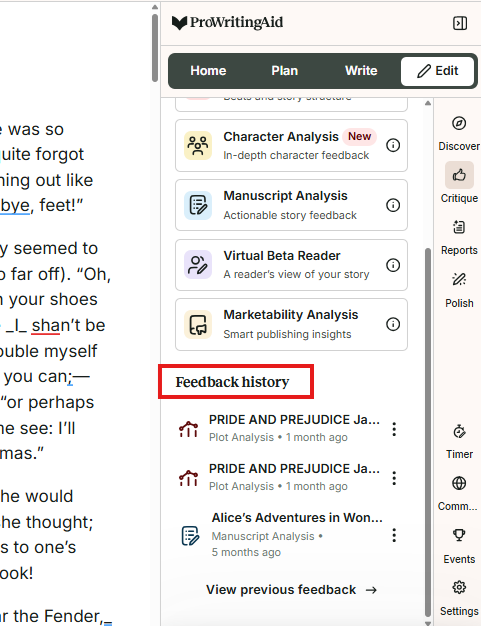
To do this in the Web Editor, click on the “Edit” tab in the righthand sidebar. Then click on "Critique" on the menu inside the sidebar. Scroll down to “Feedback History” and click “View previous feedback.” We have highlighted this in red in the image below.
To do this with a ProWritingAid integration, click on the floating ProWritingAid icon. Click on “Critique,” then scroll down to “Feedback History” and click on “View previous feedback.”
You can then select from a menu with all previous instances when you ran a report.
How to print or download reports
Click on the “Print” icon button at the top of the report. We have highlighted this button in red in the image below.

From here, you can either print the document or select “Save as PDF” in the drop-down menu under “Printer.” Then click the “Save” button to download the PDF file to your computer.
ProWritingAid is more than just an editing assistant; we’re here to help you bring your story to life. Unlock your story’s full potential with our in-depth writing reports, actionable feedback, and more.