
How to use the Session Timer
The Session Timer is a feature within "Write" mode. You can use it to record the time and word count of your writing sessions.
How to start a session with the Session Timer
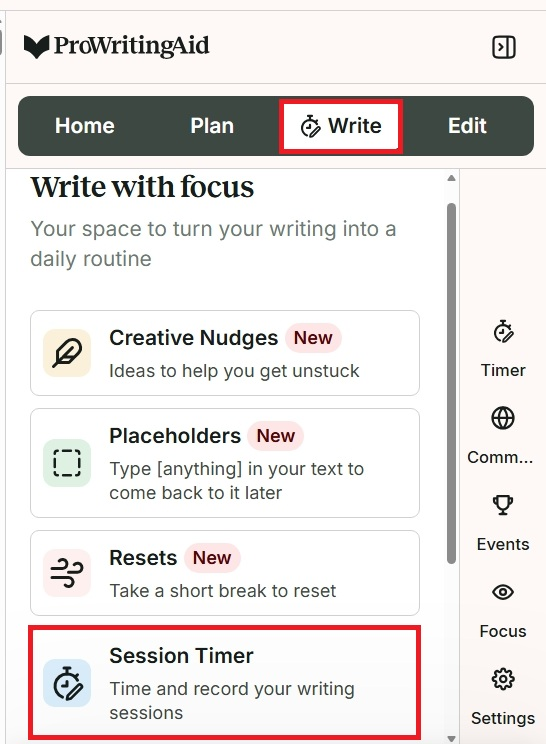
Click on “Write” mode, then click on "Session Timer." We have highlighted these actions in red in the image below.
The Session Timer window will appear. You can enter a session title in the field at the top.
By default, the session time is set at 25 minutes. You can click inside the time to type a specific number of minutes you would like the session to last. Alternatively, you can click the white “+ 5 min” button to add an extra 5 minutes to the session.
When you are ready, click the black “Start session” button. We have highlighted this button in red in the image below.

How to use the Session Timer when a session is running
When a session is running, a timer will count down to zero. You can close the Session Timer window, and the countdown timer will still continue running in the background.
When the Session Timer window is open, you can click the white “+ 5 min” button to add an extra 5 minutes to the session, click “Finish” to finish the session early, or click “Pause” to temporarily suspend the session.
How to use the Session Timer when you complete a session
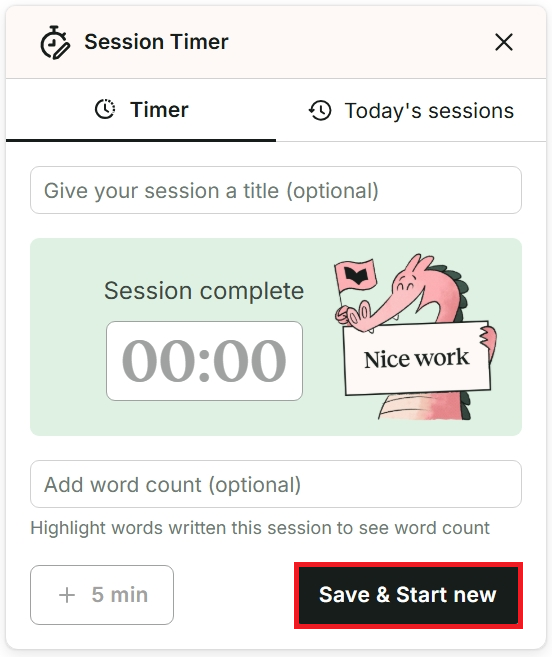
When you complete a session, you can again enter a session title in the field at the top if you didn’t do this last time. You can also enter your word count for the session in the field at the bottom. Remember to click the black “Save & Start new” button to save your session. We have highlighted this button in red in the image below.
How to see and manage your Session History
When the Session Timer window is open, click on the “Today's sessions” tab. You can see the dates and durations of all your sessions on that day. You can also see the total time and total word count of all sessions if you entered this.
To update and view your entire session history, click on the “Manage session details” button. You will visit the “Progress” section of your ProWritingAid Dashboard. We have shown an example of this section in the image below.

Click on the edit icon to edit the date, title, duration, and word count of each session. Alternatively, you can click on the delete icon to delete a session.
The Session Timer is not currently supported in the Microsoft Word app. You can still use the Session Timer in Word for the Web via our browser extensions.
ProWritingAid is more than just an editing assistant; we’re here to help you bring your story to life. Unlock your story’s full potential with our in-depth writing reports, actionable feedback, and more.