
How do I activate Vampire (Dark) Mode?
Vampire (Dark) Mode changes the color scheme of our website and applications from light to dark to reduce eye strain, especially when using your computer in low-light conditions or at night.
Vampire (Dark) Mode reduces the amount of blue light emitted from the screen, which can also be particularly beneficial if you write or edit on your computer for hours.
Using Vampire (Dark) Mode
Vampire (Dark) Mode is available in our Web Editor and all our integrations. How you access it will vary slightly depending on what integration you use.
Web Editor
In the Web Editor, click on "Settings" in the right-hand side bar. We have highlighted this icon in red in the image below.
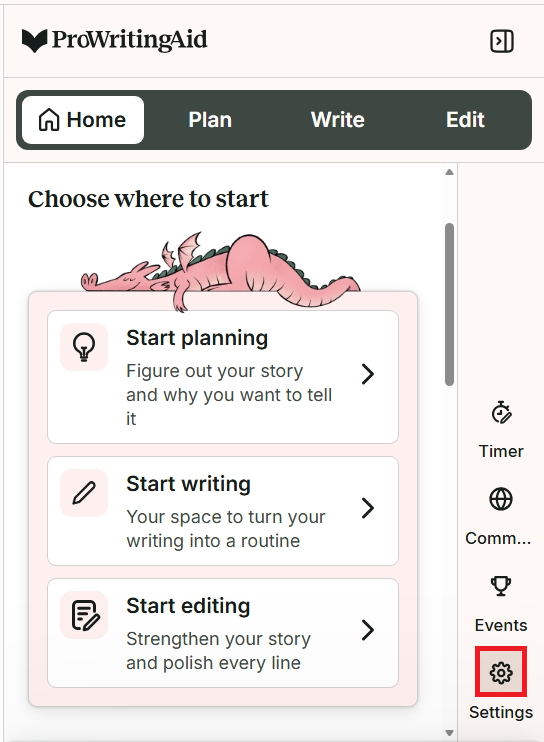
Then click on the toggle next to "Vampire (Dark) Mode."
Chrome, Firefox, and Edge extensions
To turn Vampire (Dark) Mode on or off in Chrome, Firefox, or Edge:
-
Click on the ProWritingAid icon

- Click on the "Settings" icon
-
Click on the "Vampire (Dark) Mode" toggle


ProWritingAid Desktop Everywhere
To turn Vampire (Dark) Mode on or off in our Desktop Everywhere app:
-
Click on the ProWritingAid icon

- Click on the "Settings" icon
- Click on the "Vampire (Dark) Mode" toggle

ProWritingAid is made by writers, for writers. Don’t just take our word for it—check out these real reviews by other writers.