
How to use the Novel Beginnings dashboard
If you registered for Novel Beginnings, you will be able to access the Novel Beginnings dashboard.
How to visit the Novel Beginnings dashboard
To visit the Novel Beginnings dashboard, click on “NovBegin” in the dashboard side menu.
Add your book title
At the top of the Novel Beginnings page are your book’s title and your current progress toward your 5,000-word submission. You can add or edit your title at any time by clicking on the pen icon button. We have highlighted this in red in the image below.
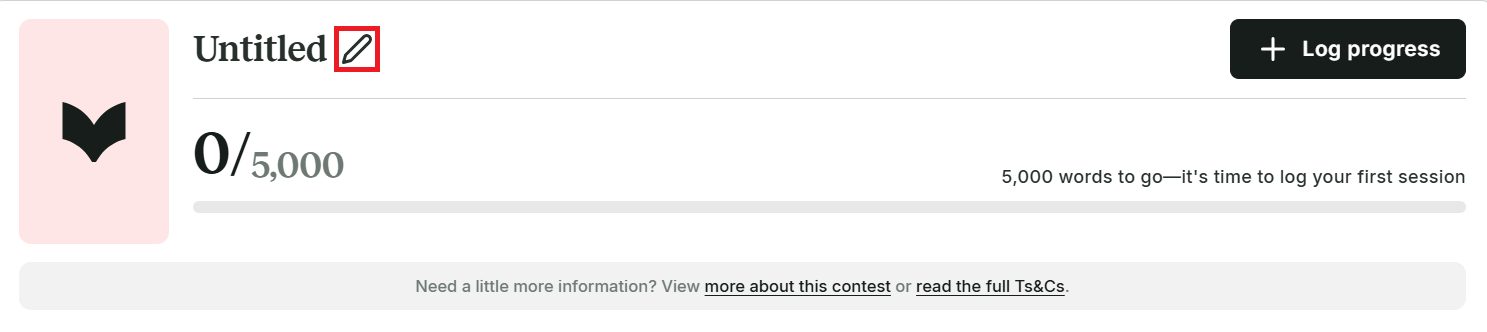
A window will appear. Type your book title, then click “Update.” You can also click on the “Log progress” button to log the number of words you have written so far.
Check Novel Beginnings time frames and your average daily words
Submissions for Novel Beginnings are now closed. You can still check your average daily words.
See the badges you have earned
The “Your badges” section shows the badges you’ve earned during Novel Beginnings. We have shown this section in the image below.
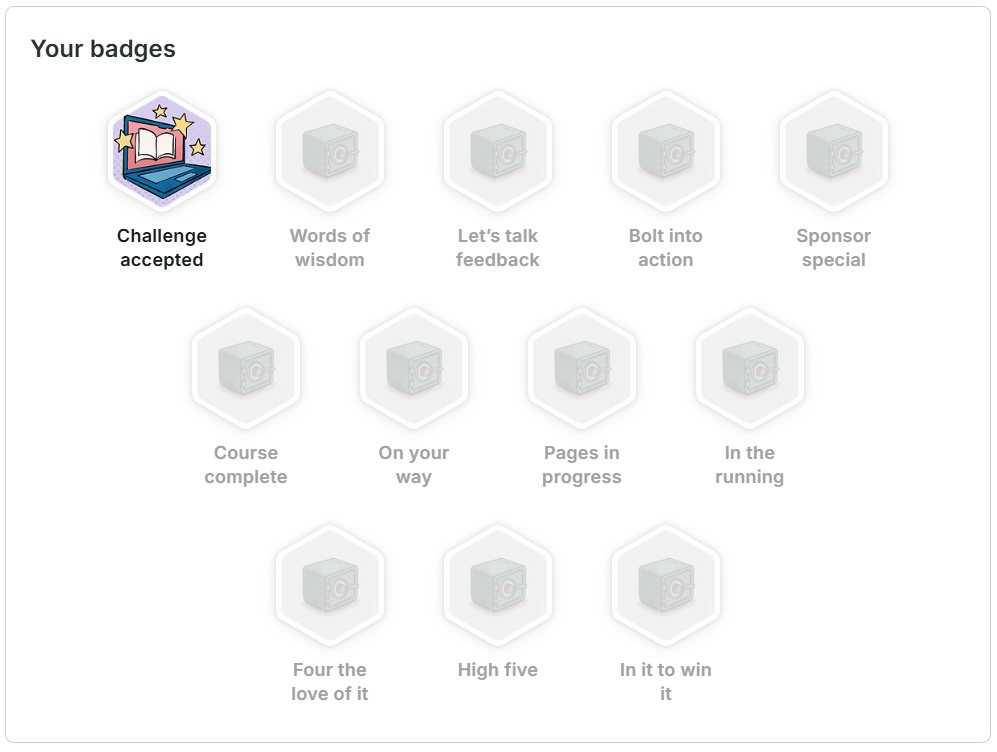
You’ll gain more and more badges as you hit specific milestones throughout the month. Click on a locked badge to discover how to earn it.
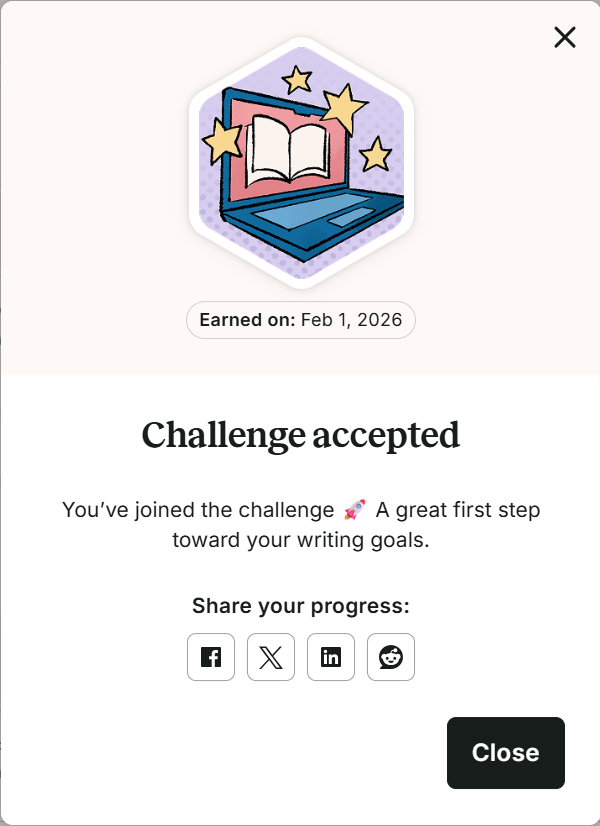
You can also click on colored badges you have earned, and a window will appear. This will tell you why you earned the badge and when you earned it. You can also share your achievement on social media by clicking on the Facebook, X, LinkedIn, or Reddit icon buttons. We have shown this in the image below.
Get special offers from our sponsors
If you signed up for Novel Beginnings, you are entitled to special offers from our sponsors. In the “Special offers” section, click on each sponsor logo to visit each sponsor’s website. We have shown this section in the image below.

Log your progress
You can use this section to log your word counts. You will be able to see how many words you have written on each date at a glance. You can also click on the icons in the top right-hand side of the section to see your progress represented as a table, graph, or bar chart. To update your current word count, click on the “Log progress” button. We have highlighted this in red in the image below.
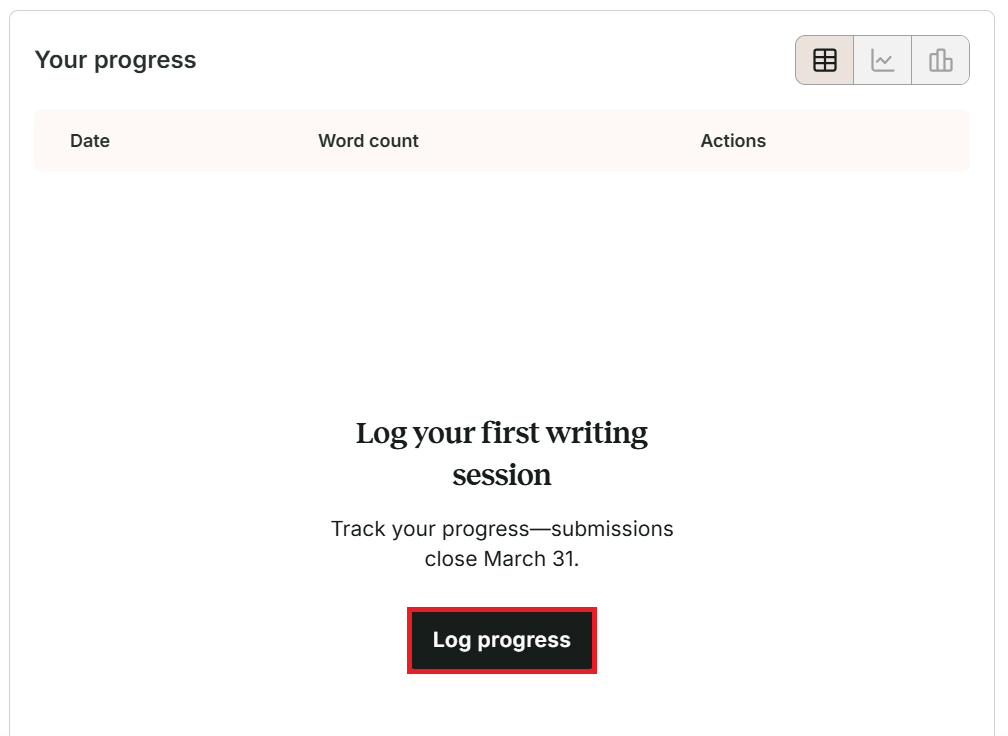
A new window will appear that asks how many words you have written for this session. You can click on the date if you need to select a previous date. Then enter the amount of words in the “Number of words” field and select the “Submit” button.
ProWritingAid is more than just an editing assistant; we’re here to help you bring your story to life. Unlock your story’s full potential with our in-depth writing reports, actionable feedback, and more.